KherveLAB
AvailableBook a lab's instruments, approve requests and bill each user's time.
KherveLAB runs a lab's instrument bookings from the lab computer. Users log in, see the schedule and book time by dragging across a calendar. The lab manager decides how each instrument is booked: free time in slots, or fixed sessions. The manager also sets whether a booking is approved at once, only for trained users, or always by hand, and the hourly rate or session price for each user category. Every booking keeps the price in force when it was made. Reports turn the bookings into finance and usage charts and per-user cost statements (PDF, Excel, CSV). A lab moving from PPMS can import its users, instruments, prices, training and booking history. Optional booking pages let people book from their own browser on the lab network, under the same rules. Claude can act as the lab manager over MCP. Everything is kept in one SQLite file.
Attributes
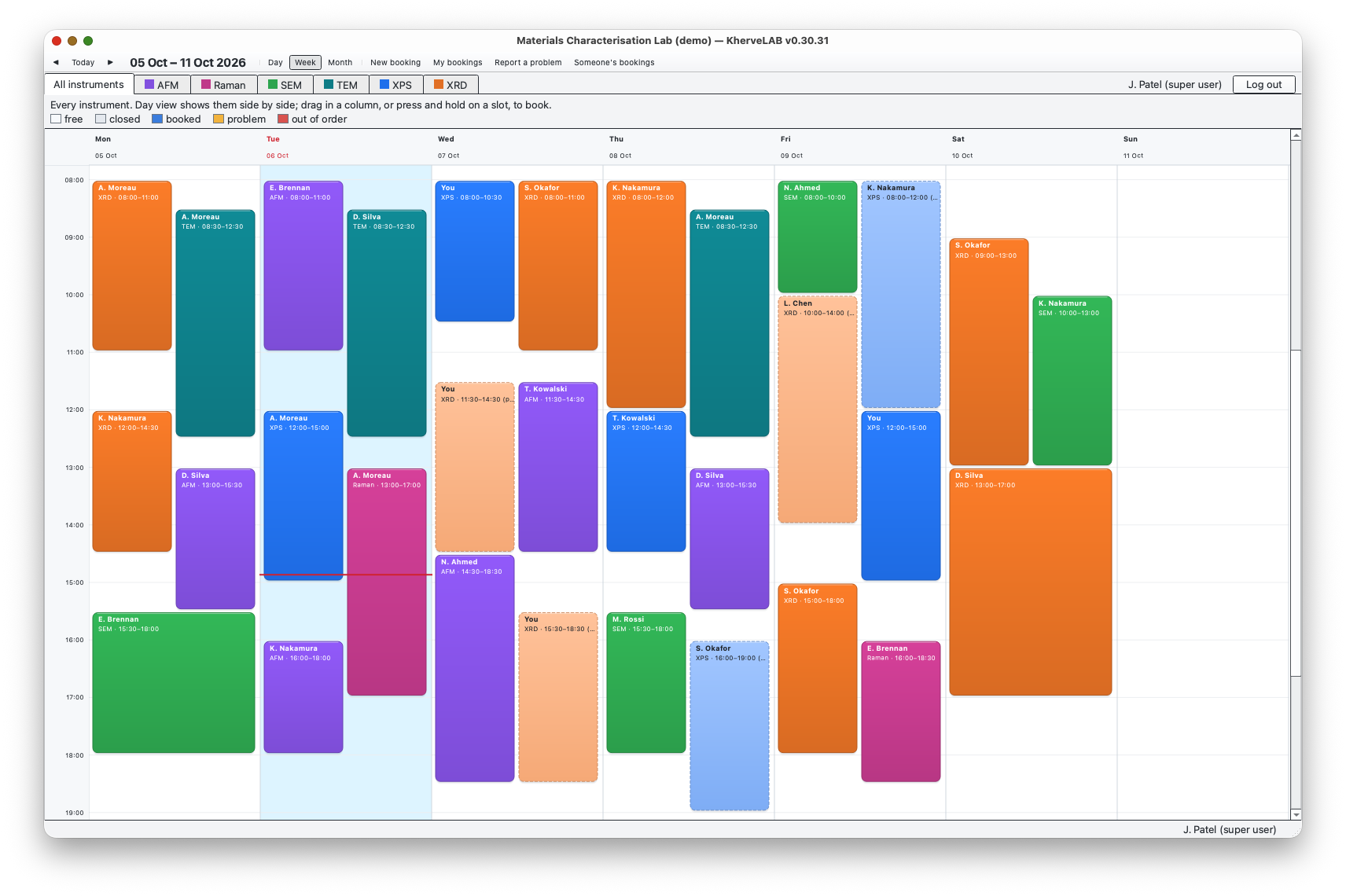
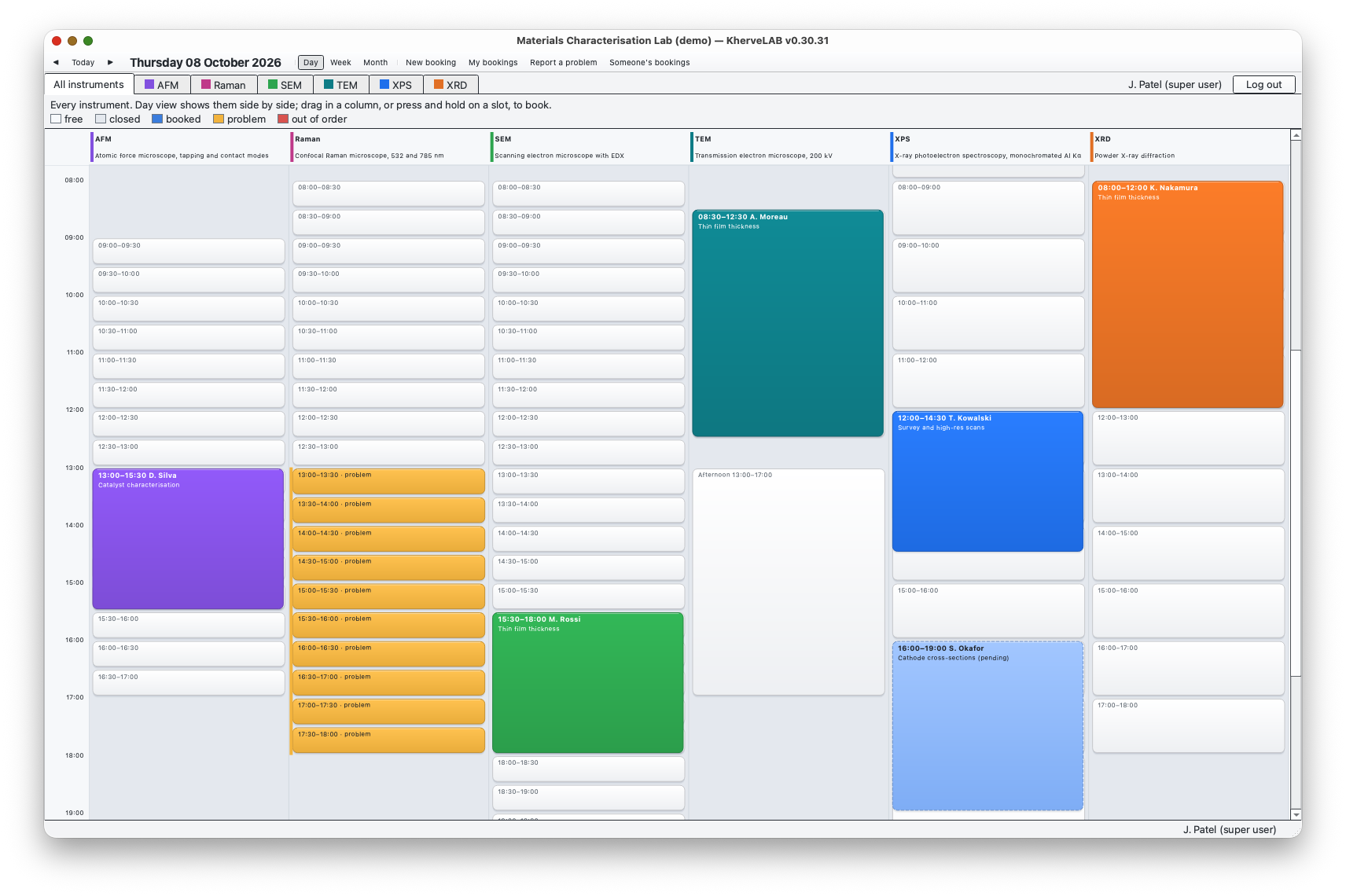
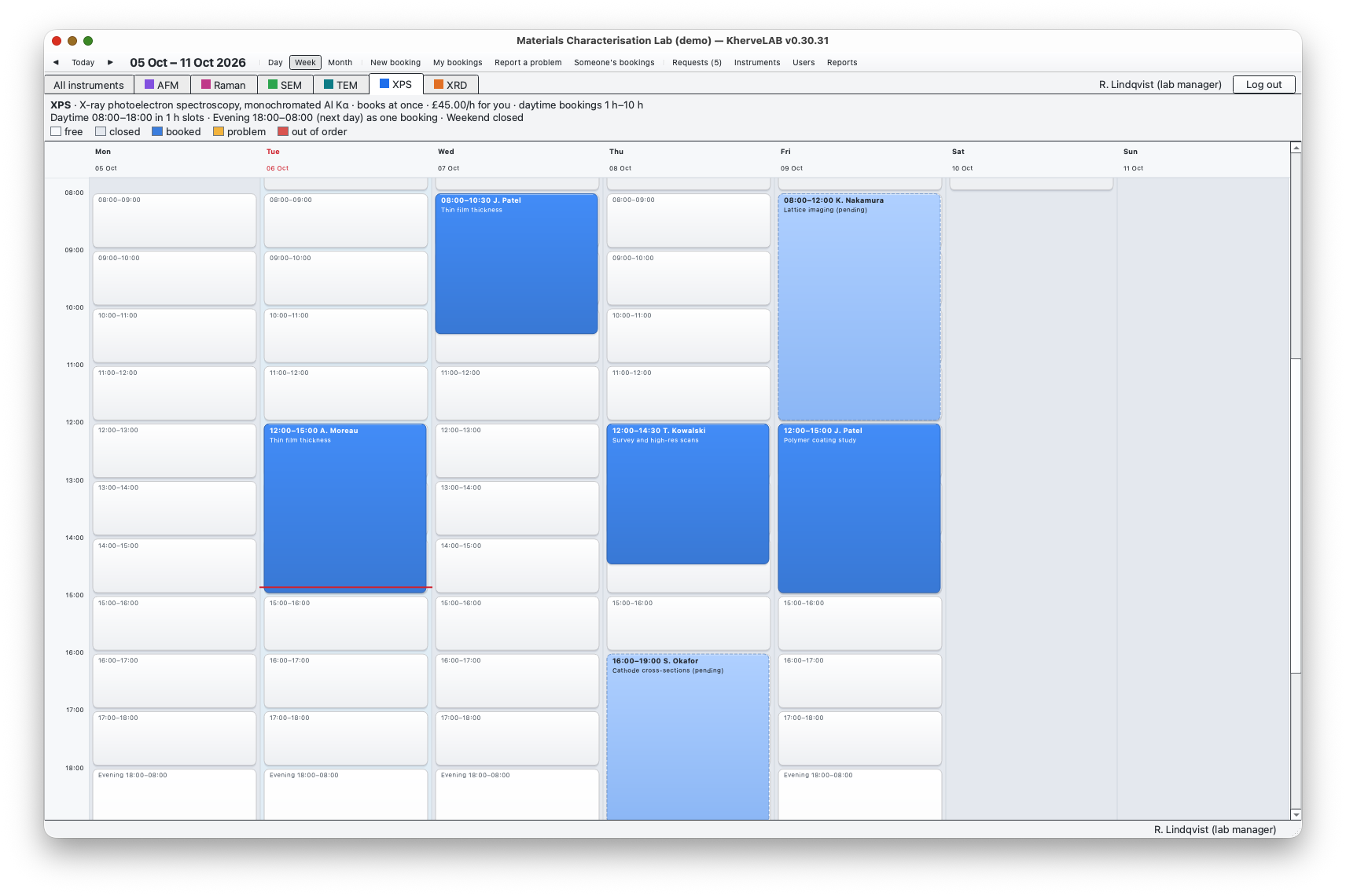
- A schedule for the whole lab. The All instruments tab shows everyone's bookings, each card filled with its instrument's colour and headed by the person's name. Each instrument has its own tab, which shows your rate, whether your booking is approved at once, the opening hours and the allowed length. Day, Week and Month views; in the Day view, instruments sit side by side.
- Booking that doesn't happen by accident. Drag across free time, or press and hold a slot until it lights up; a plain click never books. The booking window shows the hours, your cost, whether approval is needed and any rule the booking breaks. Drag a booking to move it, or drag its edge to resize it.
- Two ways to book an instrument: free time, in slots counted from the start of each period, with separate daytime, evening and weekend periods (closed, one whole booking, daytime slots or slots of their own; a weekend can be one Saturday-to-Monday window); fixed sessions the manager defines, such as Morning, Afternoon and Overnight, each with its own days and prices.
- Approval per instrument: automatic, automatic for trained users only, or manual. Pending requests are drawn dashed and pale until the lab manager approves or rejects them from the Requests panel.
- Three roles. A user books their own time. A super user books, moves, cancels and reassigns bookings for anyone, under that person's rules and price. The lab manager runs everything, and a booking the manager makes for someone is approved at once at that person's rate.
- Costs per user category. Each instrument has an hourly rate for each category (by default Internal, External academic and Industry), and sessions can have a fixed price for each category. A booking stores its price when it is made, so later price changes never rewrite past charges. Only approved bookings are charged.
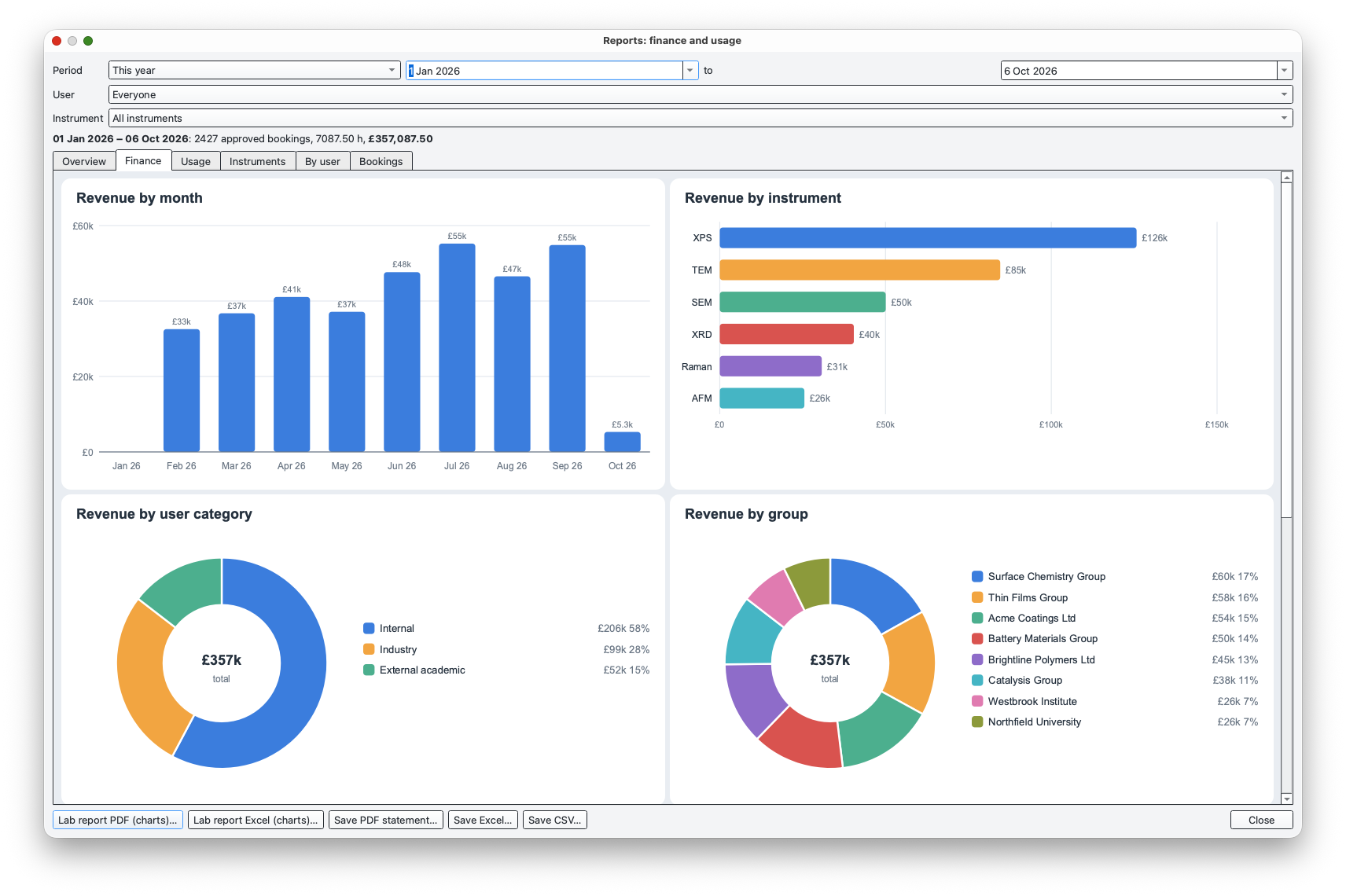
- Reports for any period, user or instrument: headline figures; revenue by month, instrument, user, category and group; hours booked, and a weekday × hour heat map of when the lab is used; utilisation and downtime for each instrument. Save a lab report as PDF or Excel (with native charts), or statements as PDF (a page per user), Excel or CSV. Users can save their own statement.
- Problems and out of order. Anyone logged in can report a problem (still usable) or an out-of-order period on an instrument. Out-of-order time blocks new bookings except the manager's, and the calendar shows both in their own colours.
- Import from PPMS. KherveLAB recognises the CSV or Excel exports for systems, users, prices, rights, bookings or usage, and incidents, and their columns. A dry run (Check) shows what would be created and skipped. A backup is taken first, and importing the same files again skips what is already there. Imported people claim their account with their username and email at their first log-in.
- Optional booking web pages. The manager starts them from the Manage menu, or runs them without the app window (Start ▸ KherveLAB web server on Windows, KherveLAB --serve elsewhere). They draw the same calendar from the app's own rules, so the web can only book what the instrument settings allow. Bookings appear in the app within 30 seconds.
- Everything is in one SQLite file (lab.db), with a backup from Lab settings. The app never needs a browser or a server.
AI built in
Manage ▸ Connect to Claude sets up Claude Desktop or Claude Code to act as a lab manager you choose, working directly on lab.db. Claude can read the lab overview, bookings, requests and the finance report. It can set up instruments, rates, users and training, book for someone, approve or reject requests, and report problems. It can also move a lab off PPMS, from export files or by reading screenshots of PPMS pages. It has no tools that delete anything, and every change is logged to mcp-log.jsonl.
Built with
A modern stack of well-known scientific Python libraries.
Documentation
Getting started
Install KherveLAB on the lab computer: the Windows installer, the portable zip or the macOS disk image. On first launch it asks for the lab's name and the lab manager's account. It also offers a few starting instruments, which you can rename, change or remove. KherveLAB then opens with nobody logged in: anyone can check what's free, and Log in and Create account are at the top right. All data is in ~/KherveLAB-data/lab.db, or a folder of your choice with --data.
Setting up an instrument
As lab manager, open Instruments and add an instrument. For each one, set: the approval mode (automatic, automatic for trained users, or manual); the hourly rate for each user category; which users are trained; how it is booked. A free-time instrument has a daytime period (Mon–Fri) with a slot length, plus an evening and a weekend period that are closed, one whole booking, daytime-length slots or slots of their own. You also set the shortest and longest booking and how far ahead people can book. A session instrument instead has named sessions, each with a start, an end, the days it runs and a price for each category. Start from a template such as two day sessions and an evening run.
Booking and approval
Drag across empty time, or press and hold a slot, and the booking window opens with the cost and whether the booking will be approved at once. Bookings that need approval wait in the manager's Requests panel. If you change a booking on such an instrument, it goes back for approval. Other people's purposes and costs stay private. My bookings (Ctrl+B) lists your bookings and this month's total. To book for someone, the manager or a super user picks the person in the For list, and the price follows that person's category.
Costs and statements
Reports (Ctrl+E) covers any period (last month, this year, all time, or a custom range), filtered by user or instrument. Overview, Finance, Usage and Instruments show the charts; By user and Bookings show the statement tables. Save a lab report as PDF or Excel, or statements as PDF (one page per user, ready to send), Excel or CSV. Revenue counts approved bookings only, at the price fixed when each was made.
Moving from PPMS
Export what you have from PPMS as CSV or Excel (systems, users, prices, rights, bookings or usage, incidents) and add the files in Manage ▸ Import from PPMS. KherveLAB matches each file and its columns, and reads the date order from the file. Say which of your instruments each PPMS system is, then press Check for a dry run. Import saves a backup first. Bookings keep the amount PPMS charged, and PPMS rights become training. Imported people choose a password at their first log-in, using the email on record.
Booking from other computers
Manage ▸ Booking from other computers starts the booking web pages on the lab network and shows the address to hand out. People log in with the same accounts and see the same calendar, slots and checks as in the app. Instruments are set up only in the app. To run the web pages without the app window, use Start ▸ KherveLAB web server on Windows (a console window that shows the address; close it to stop), or KherveLAB --serve --port 8080 on a computer with no display.
Connect to Claude
Manage ▸ Connect to Claude chooses which manager Claude acts as. It then adds KherveLAB to Claude Desktop, or gives the one-line command for Claude Code. Claude works on lab.db directly, so the app doesn't need to be open, and an open app shows the changes within 30 seconds. Claude asks before each change unless you allow a tool permanently.
On macOS and Windows
The macOS disk image is ad-hoc signed but not notarised. The first time, right-click KherveLAB in Applications and choose Open. The Windows installer is unsigned and installs for the current user, without admin rights. If SmartScreen warns, choose More info, then Run anyway. Upgrading or uninstalling never touches the lab's data folder.
Versions
Disk image for Apple Silicon and Intel.
First public release. Instrument booking for one lab: an All instruments calendar, with each booking in its instrument's colour, and a calendar for each instrument; booking by dragging, or by press-and-hold; free-time slots (daytime, evening and weekend) or fixed sessions; auto, trained-only or manual approval; user, super user and lab manager roles; hourly rates and session prices for each user category, fixed when a booking is made; problem and out-of-order reports; finance and usage reports with charts, lab report PDF and Excel, and PDF, Excel and CSV statements; import from PPMS; optional booking web pages on the lab network; Claude as lab manager over MCP. Windows installer and portable zip, and macOS disk images for Apple Silicon and Intel.
Part of the Kherve Tools family
Applications made by a scientist, for scientists.