
KherveRef
AvailableA free reference manager for LaTeX and Word — an alternative to Zotero and Mendeley, Git-synced and AI-ready (local AI and Claude over MCP).
A reference manager that ties KherveTeX and KhervePDF together. A library is an ordinary folder — a .kref file, a PDFs folder with every paper named by its citation key, and a library.bib — versioned with Git and synced to any Git remote, so two computers editing different references merge cleanly. Drop PDFs, folders, DOIs, arXiv ids or ISBNs and KherveRef reads the identifier and fetches the full details; import from Zotero, BibTeX, RIS, EndNote and PubMed. KherveTeX cites straight from library.bib, PDFs open in KhervePDF (whose Add to KherveRef sends papers back), and Word gets formatted citations in over 35 styles or any journal's own.
Attributes
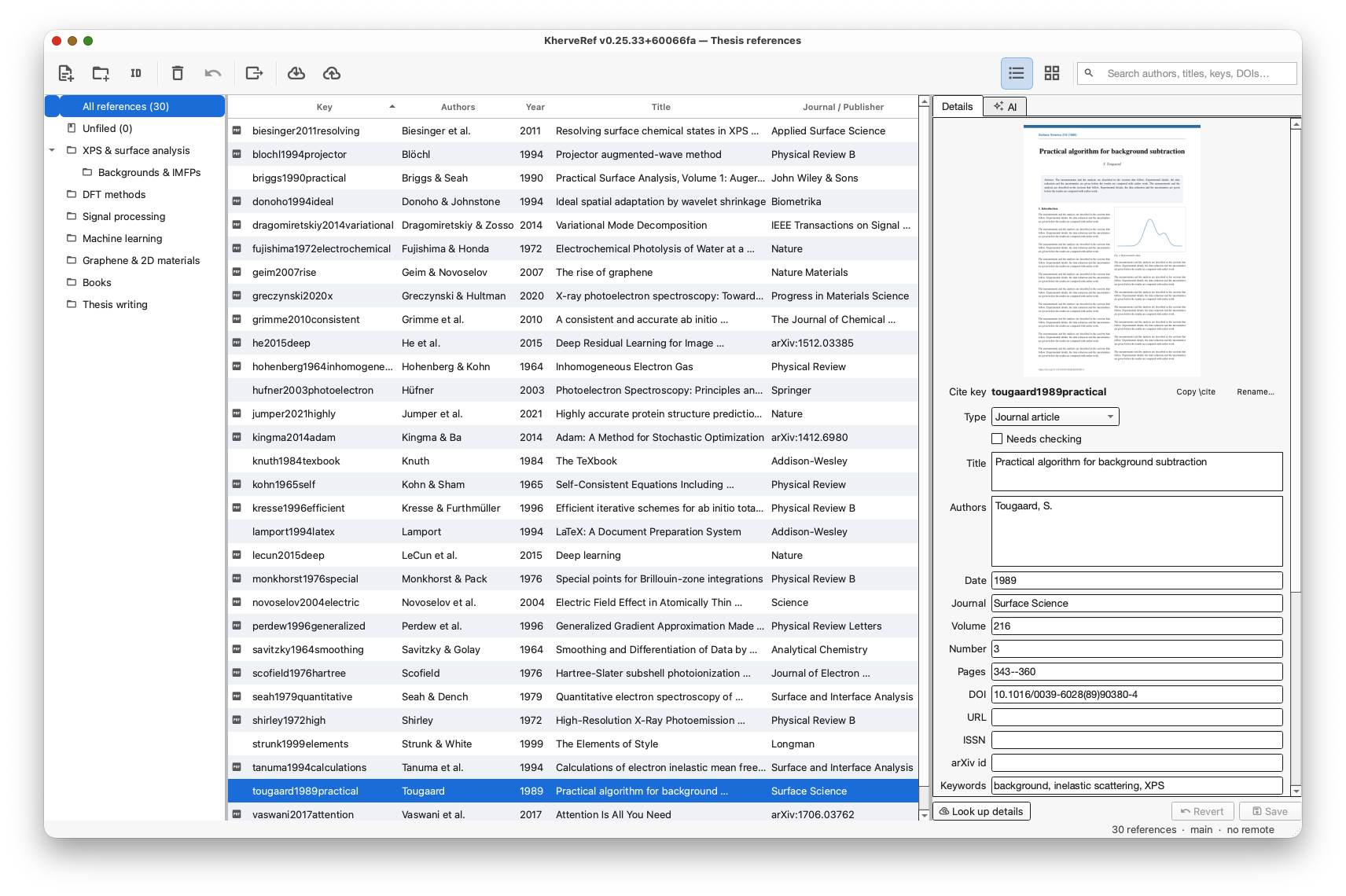
- A library is a folder you can read — <Name>.kref (double-click to open), PDFs/ named by citation key, and library.bib; KherveRef's own data sits in a hidden .kherveref/ folder, one small file per reference
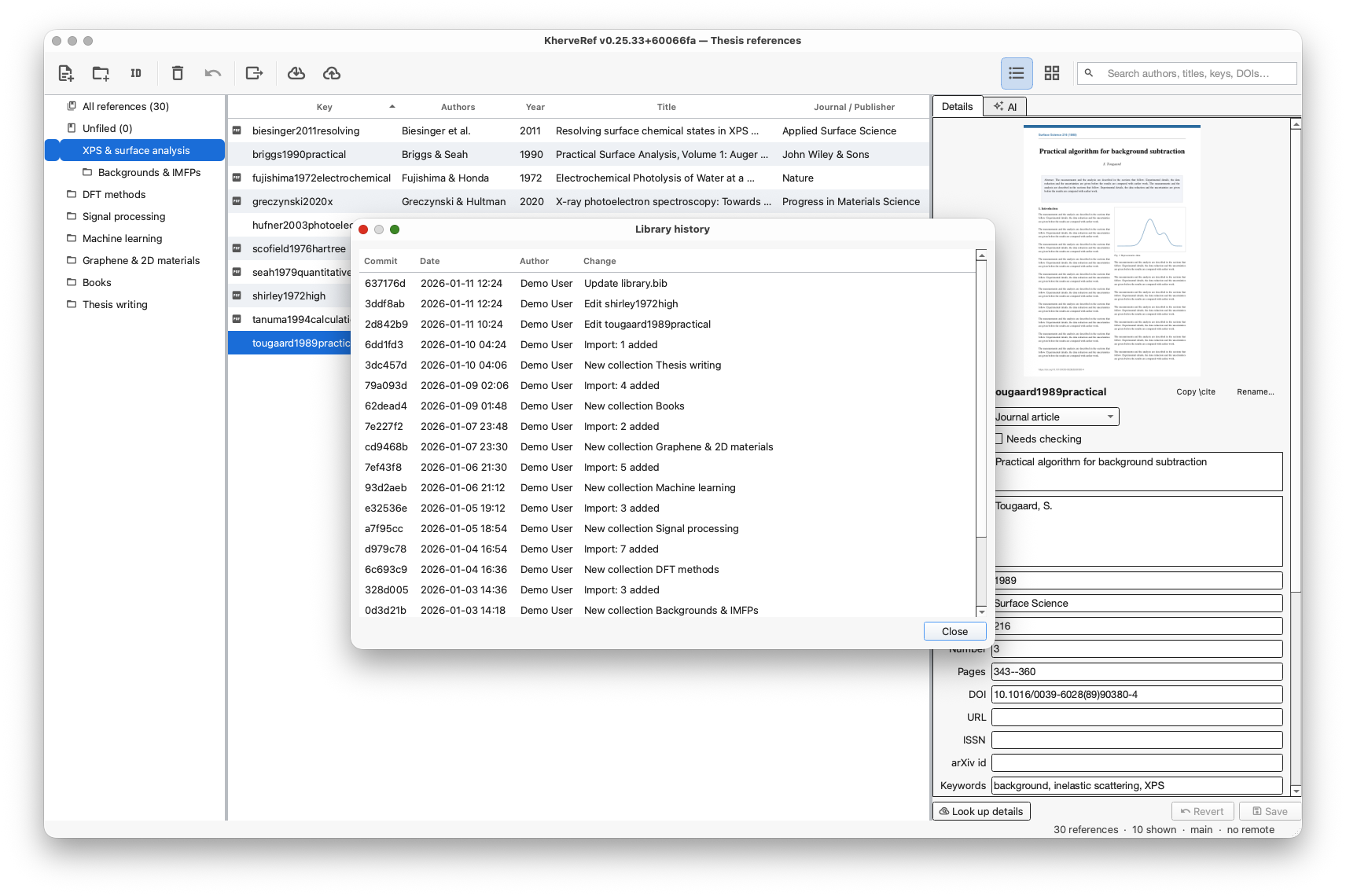
- Versioned with Git — every change is a commit with a history browser, and libraries sync between computers through GitHub or any Git remote using your own credentials
- Drop PDFs or whole folders — KherveRef reads each PDF's DOI, arXiv id or ISBN and fetches the details from doi.org / Crossref, arXiv or OpenLibrary; without an identifier it searches Crossref by title and only accepts a near-exact match; anything not found goes under Needs checking
- Never the same paper twice — the same PDF, DOI, arXiv id or ISBN is recognised, and a PDF for a reference you already have is attached to it
- Import from other reference managers — Zotero (PDFs, nested collections, tags and notes, read from a copy so Zotero is never changed), BibTeX / BibLaTeX, RIS, EndNote XML, PubMed .nbib and CSL-JSON
- BibLaTeX export by default, classic BibTeX as an option, per collection or for a selection; the same library always gives a byte-identical .bib, and citation keys are never renamed behind your back
- KherveTeX: Insert ▸ Citation picks from your libraries' library.bib, and cited entries travel inside the document, so it still compiles on a computer without KherveRef
- KhervePDF: attachments open in KhervePDF, its Add to KherveRef and Show in KherveRef reach the open window, and PDF highlights and comments can be copied into a reference's notes
- Microsoft Word: drag references in as formatted citations in over 35 bundled styles (APA, Harvard, Chicago, Vancouver, Nature, Science, ACS, RSC, AIP, APS, IEEE…) or any of ~10,000 journal styles, keep Word's own source list up to date, or cite from a KherveRef panel inside Word
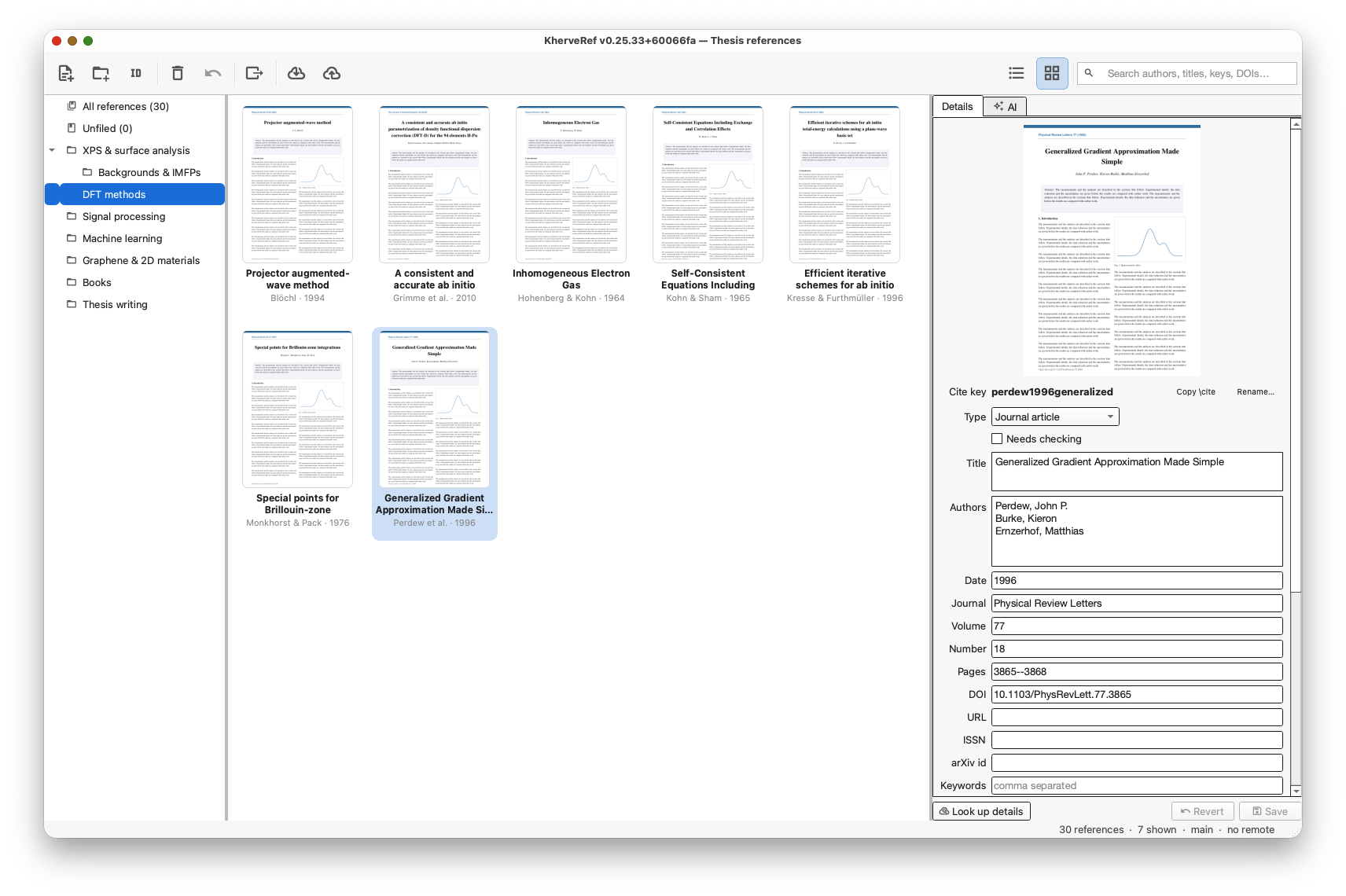
- Covers view of the PDFs' front pages, collections with drag-and-drop filing, search, a preview before folder imports, and Undo / Redo of any change — PDFs included
- Local AI through Ollama — summaries of a paper, questions about it, and Ask the library across a collection with [key, p. N] sources; nothing leaves the computer
AI built in
Connect Claude Desktop, Claude Code or Cursor over MCP (AI ▸ Connect to Claude) and Claude can search, add (DOI, arXiv, ISBN, PDF, BibTeX), edit, file, read and export references; it works on the library folder directly and an open KherveRef window picks up its changes. Separately, the AI tab runs local models through Ollama for paper summaries and questions, with nothing sent off the computer.
Built with
A modern stack of well-known scientific Python libraries.
Documentation
Getting started
Download the installer for Windows or the disk image for macOS from this page and start KherveRef; the portable zip runs without installing. Choose New library and a folder: KherveRef creates <Name>.kref, a PDFs folder and library.bib there and starts a Git history. Drop PDFs, a folder of papers, or DOIs, arXiv ids and ISBNs onto the window, and file references into collections by dragging them onto the tree. The full guide is under Help ▸ KherveRef User Guide (F1).
Adding and importing references
Each dropped PDF is searched for a DOI, arXiv id or ISBN and the full details are fetched online; without one KherveRef searches Crossref by title and accepts only a near-exact match. When nothing is found, or you are offline, the reference is still created from the PDF and listed under Needs checking — Look up details tries again later. Importing a folder first lists everything it would add so you can untick files. File ▸ Import from Zotero copies a Zotero library with its PDFs, collections, tags and notes; File ▸ Import file reads BibTeX / BibLaTeX, RIS, EndNote XML, PubMed and CSL-JSON.
Citing in KherveTeX
library.bib is regenerated after every change, in classic BibTeX because KherveTeX compiles with natbib and bibtex. In KherveTeX, Insert ▸ Citation picks references from your libraries, Check citations lists unknown keys, and the cited entries are bundled inside the document, so it compiles on a computer without KherveRef. Citation keys are never renamed once created, so documents keep working. For other LaTeX editors, export BibLaTeX or BibTeX, or drag references into the editor to get \cite{key}.
PDFs and KhervePDF
Attached PDFs are stored in the library's PDFs folder under the citation key and open in KhervePDF when it is installed (Reference ▸ Locate KhervePDF points at another copy). In KhervePDF, Tools ▸ Add to KherveRef and Show in KherveRef hand the paper to the KherveRef window that is already open. Reference ▸ Copy PDF annotations to notes turns your highlights and comments into notes on the reference.
Citing in Microsoft Word
Drag references into Word, or use Edit ▸ Copy formatted citation / reference, to get them in the style chosen under Edit ▸ Citation style — over 35 bundled styles grouped by field, plus Find a journal style for any journal in the CSL collection. Word ▸ Keep Word's source list up to date makes the library appear in Word's own References ▸ Insert Citation. Word ▸ Install the KherveRef panel in Word adds a panel to search the library, insert citations and a bibliography, and reformat everything in the chosen style; keep KherveRef open while citing.
Syncing with Git
Every change is committed to the library's own Git repository, and Library ▸ History lists them. Set a remote (GitHub or any Git host) with Library ▸ Set remote, then Pull and Push from the toolbar; the git command line is used, so your own credentials work. Each reference is a separate small file, so two computers editing different references merge cleanly. Edit ▸ Undo records the reversal as a new change rather than rewriting history.
AI
AI ▸ Connect to Claude (MCP) shows how to register KherveRef with Claude Desktop, Claude Code or Cursor; Claude can then search, add, edit, file and export references and read the papers. AI ▸ Set up local AI installs a model through Ollama for the AI tab: summaries of the selected paper, questions about it, and Ask the library across a collection, with page and citation-key sources. Local models run on your computer only.
On macOS
The disk image is ad-hoc signed but not notarised, so the first time you open KherveRef on a Mac, right-click it in Applications and choose Open. Double-clicking a .kref library in Finder opens it in KherveRef. On Windows the installer is unsigned: choose More info, then Run anyway; it installs for the current user without administrator rights.
Versions
Disk image for Apple Silicon and Intel.
First public release. Libraries are folders versioned with Git and synced through any Git remote. Add references by dropping PDFs, folders, DOIs, arXiv ids or ISBNs (details fetched from doi.org / Crossref, arXiv and OpenLibrary); import Zotero, BibTeX / BibLaTeX, RIS, EndNote XML, PubMed and CSL-JSON. BibLaTeX and BibTeX export, a library.bib for KherveTeX, PDFs opened in KhervePDF, citations in Word in 35+ styles plus any journal style, a Covers view, Undo / Redo, local AI summaries through Ollama, and Claude over MCP. Windows installer and portable zip, and macOS disk images for Apple Silicon and Intel.
Part of the Kherve Tools family
Applications made by a scientist, for scientists.